Find by photo
Find poses from a photo with Pose Finder
Pose Finder lets you find poses from a photo: add a photo, get poses that fit it. The app reads the photograph's framing, setting, mood and subject, and says nothing about the person in the picture.
Use Pose Finder when a photo shows the look you want and you need poses to match. Each result opens a full pose page, with two numbered cues and notes on weight, shoulders, hips, framing and camera height.
 Get the app
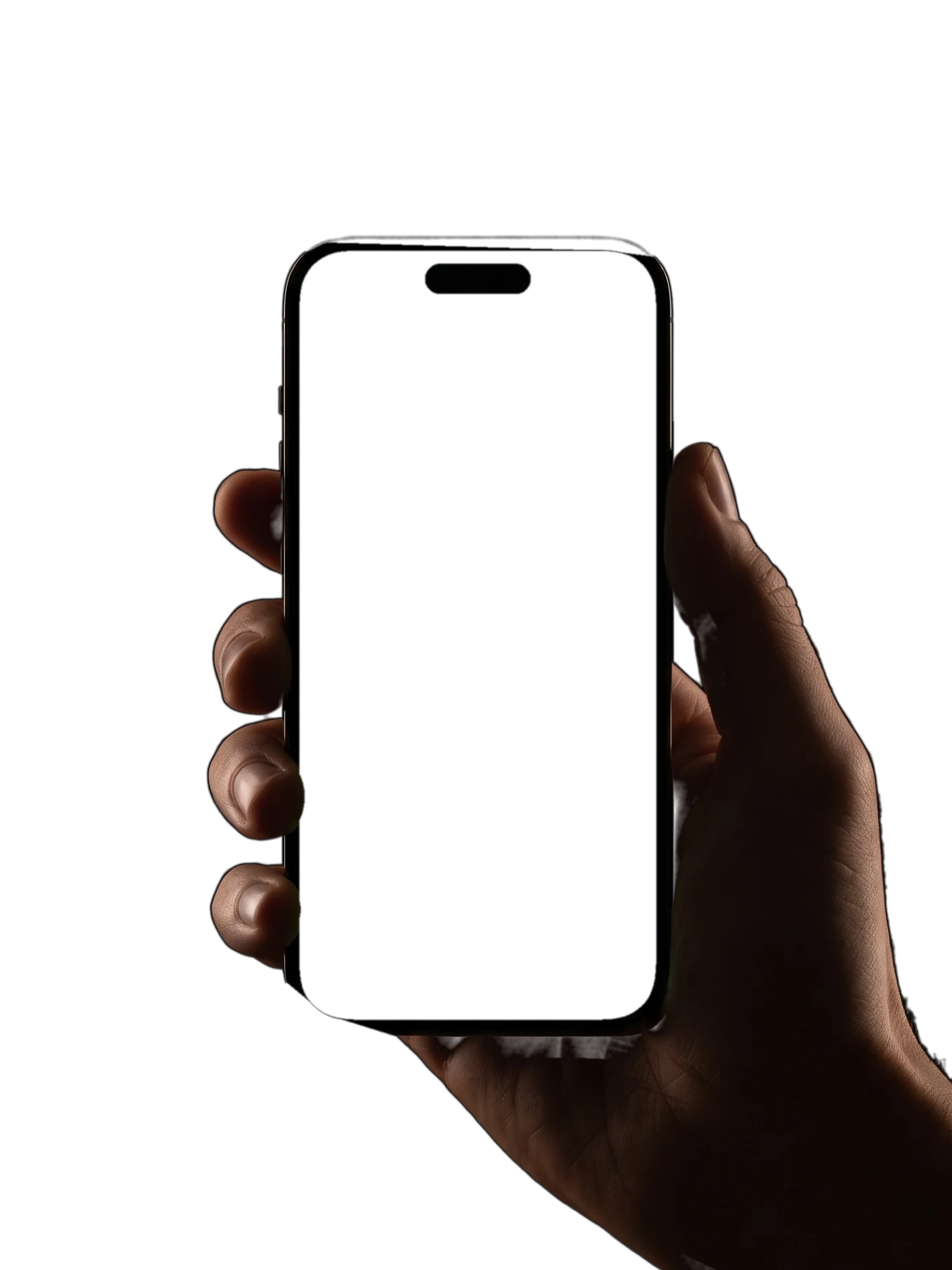
How Pose Finder works
To find poses from a photo, follow four steps.
- 1
Open the Studio tab
The Studio tab holds Pose Finder and See Yourself. Open Pose Finder to start from a photo instead of a search.
- 2
Add a photo
Add a photo whose look you want to match. The photo leaves your phone only for this AI feature and goes into private storage.
- 3
Get poses that fit it
Pose Finder reads the photograph for framing, setting, mood and subject, then returns poses that fit. It says nothing about the person in the photo, only about the photograph.
- 4
Use the poses
Open any result to see its two cues and notes. Check the framing first: a full-body pose needs room for the feet, while a half-body pose fits a tight space. Save the poses you like to a board, try one on yourself with See Yourself, or copy one live with Live Guide.
Why find poses from a photo
Searching with words works when you know what to call a pose. When you only know the look, a photo shows the framing, the setting and the mood at once. A photo also carries details words miss, such as how tight the frame is or how moody the scene feels.
Pose Finder gives you pose ideas from a photo you already like. The poses come from a library of more than 12,000 professionally made pose images, so each result already looks like a finished photo.
Good starting photos include a frame from a past shoot you liked, a picture a client sent, or a photo from a mood board. Before you save a result, check its level on the pose page. Beginner poses suit a first shoot, while advanced poses need a warm-up and some practice.
When you would rather type, the app's search reads your words as parts, and every pose idea category is one tap away.
Who Pose Finder is for
Pose Finder is for anyone who knows the look they want but not the words. You need no posing terms, only a photo, whether you model, photograph clients or want poses for your own photos.
If you photograph clients, ask for a photo they love before the session. Find poses from a photo they chose, save your favorites to a board, and show the plan before the day.
If you model, add a reference from a mood board and build a set of poses around the reference. Then rehearse each one with Live Guide, where the pose sits over the live camera view. Show the board to the photographer when the shoot starts.
For a trip, a party or a date, add a photo with the look you want and save the results you like. Try them on yourself first with See Yourself, which makes an AI portrait of you in the pose.
What happens to your photo
Photos leave your phone only for the AI features, Pose Finder and See Yourself, and they go into private storage. Delete single items or your whole account from Settings.
Pose Finder reads the photograph and nothing else. The results are about the picture, never about how anyone in the picture looks. The same goes for any photo you add, with or without you in the shot.
Poses to try with Pose Finder
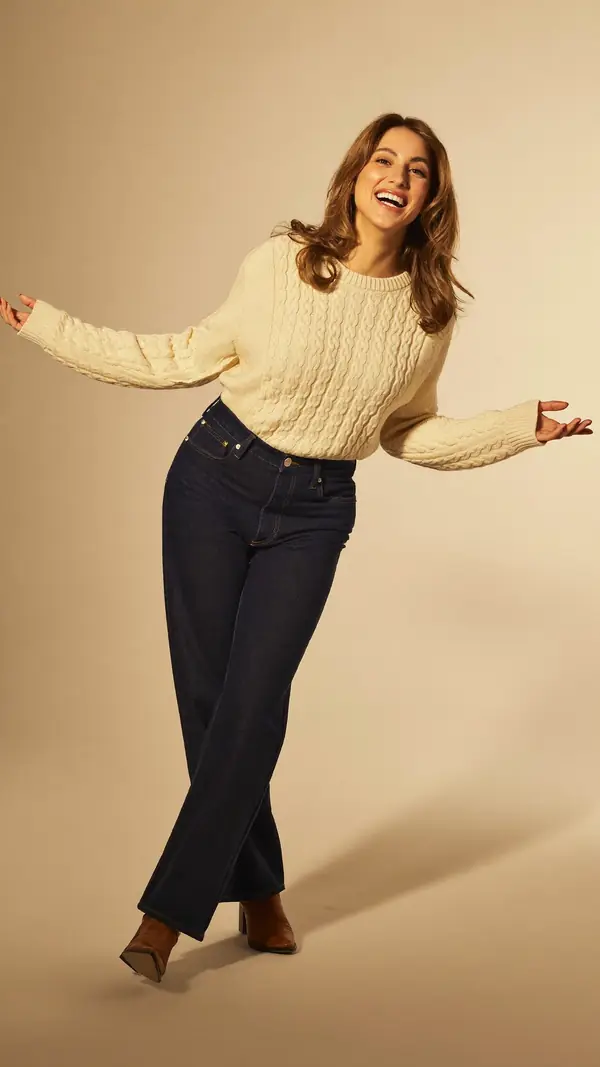
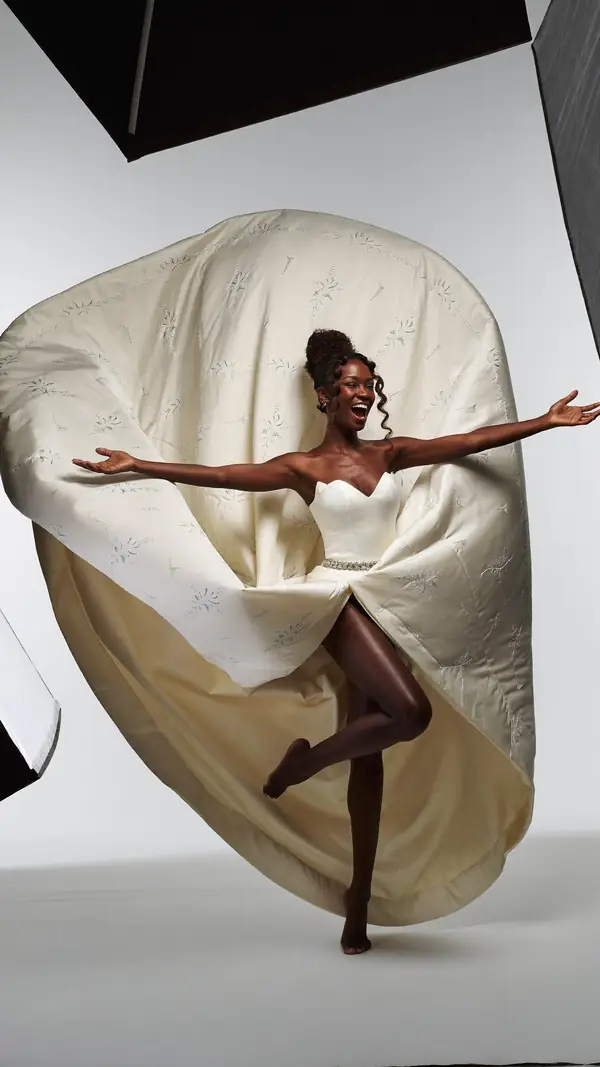
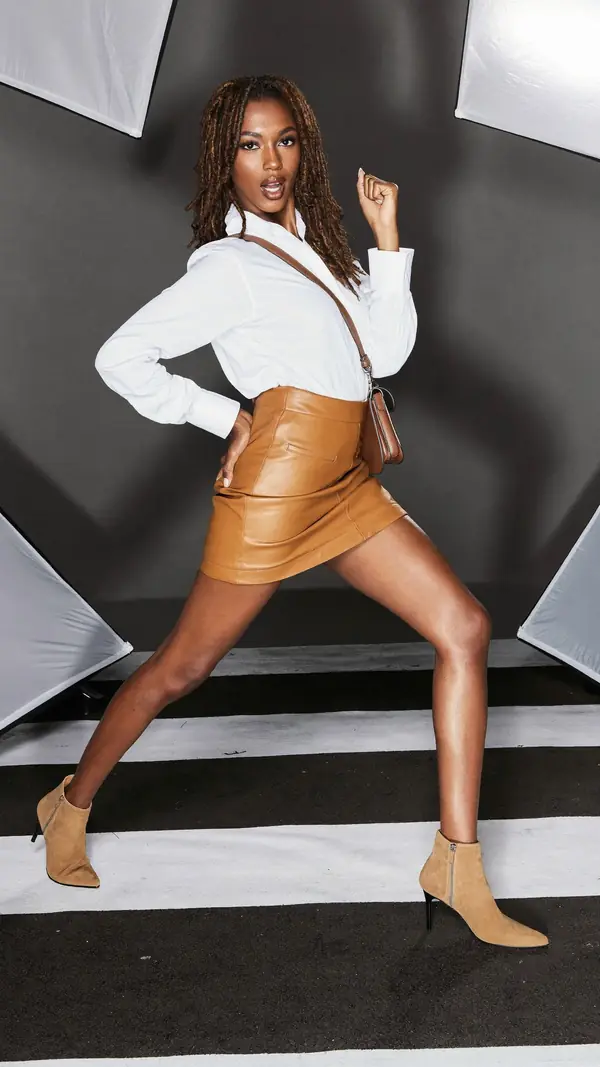
Six full-body poses, five from the studio and one in a golden field. They run from a stride and a glance back to a hand on the hip and a knee swung high. Each one opens with its two cues and notes, the same as any result.
- P-13032
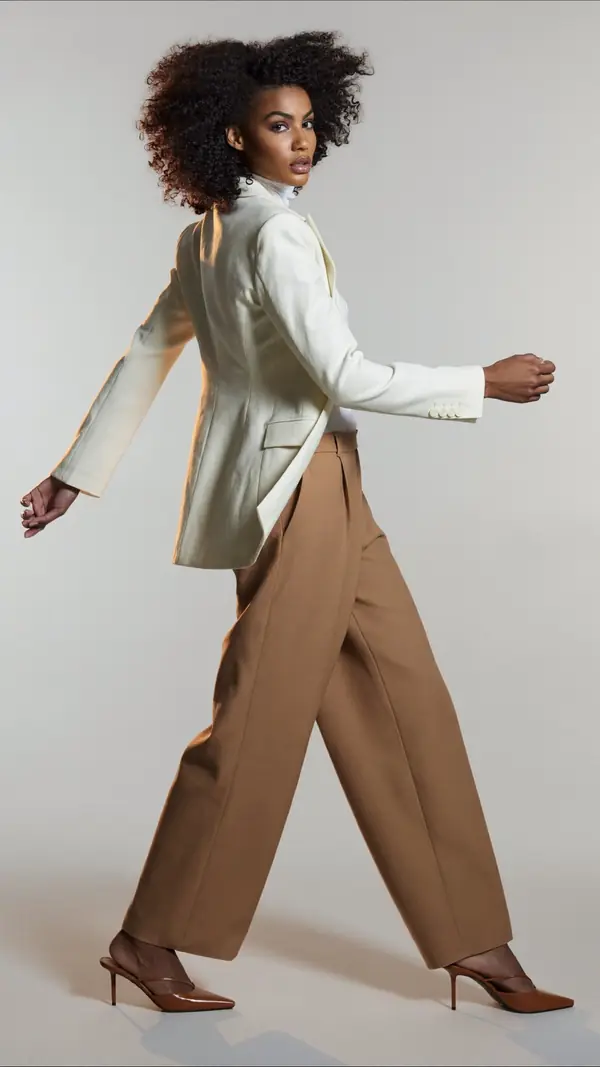
Walking Woman
advanced- 1Glance back over the shoulder
- 2Arms swing open with the step
- Weight
- Mid-stride, both feet
- Shoulders
- 0° level
- Hips
- 5° drops right
confident · studio gray · full body
- P-13051
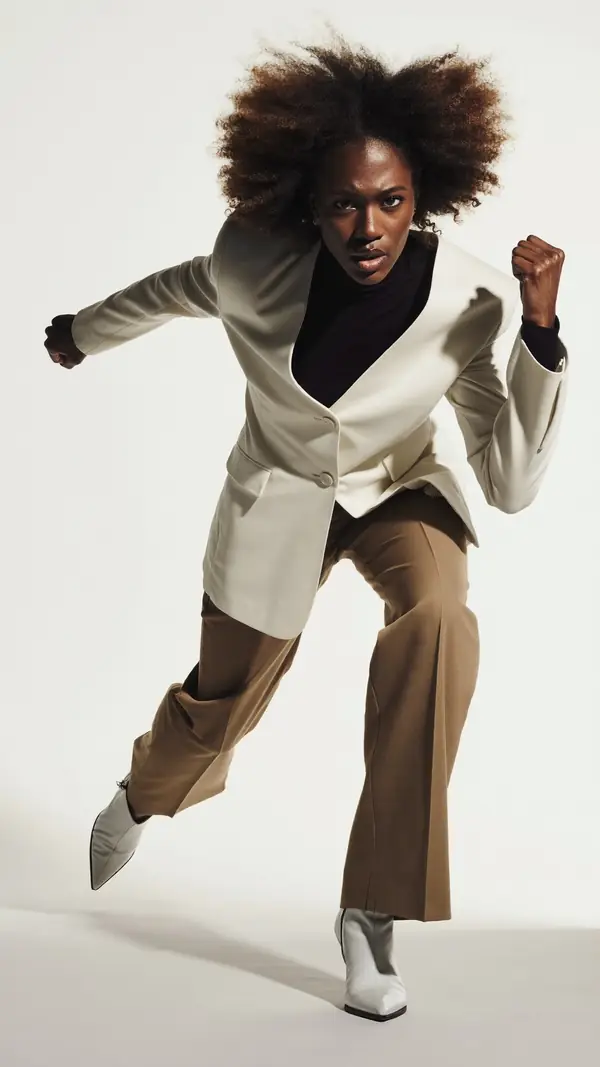
Dynamic Woman
advanced- 1Fists clenched, arms driving
- 2Back foot kicks up behind
- Weight
- On planted leg
- Shoulders
- 10° drops right
- Hips
- 3° drops right
powerful · studio white · full body
- P-13008
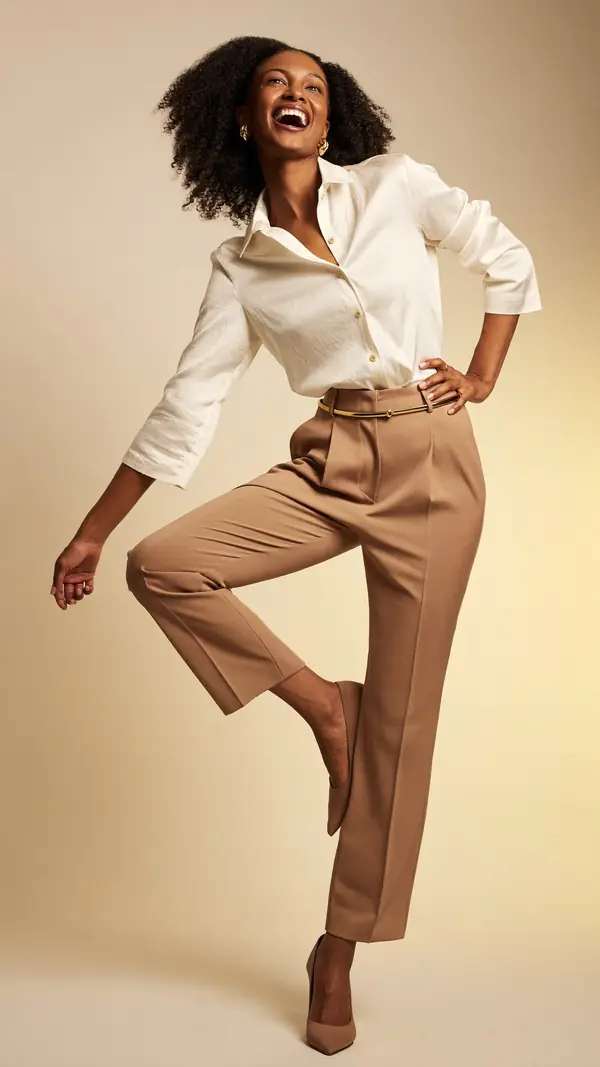
Standing Woman
intermediate- 1Hand on the hip, elbow out
- 2Swing the free knee up high
- Weight
- On the standing leg
- Shoulders
- 27° drops left
- Hips
- 5° drops right
playful · studio gray · full body
- P-12349
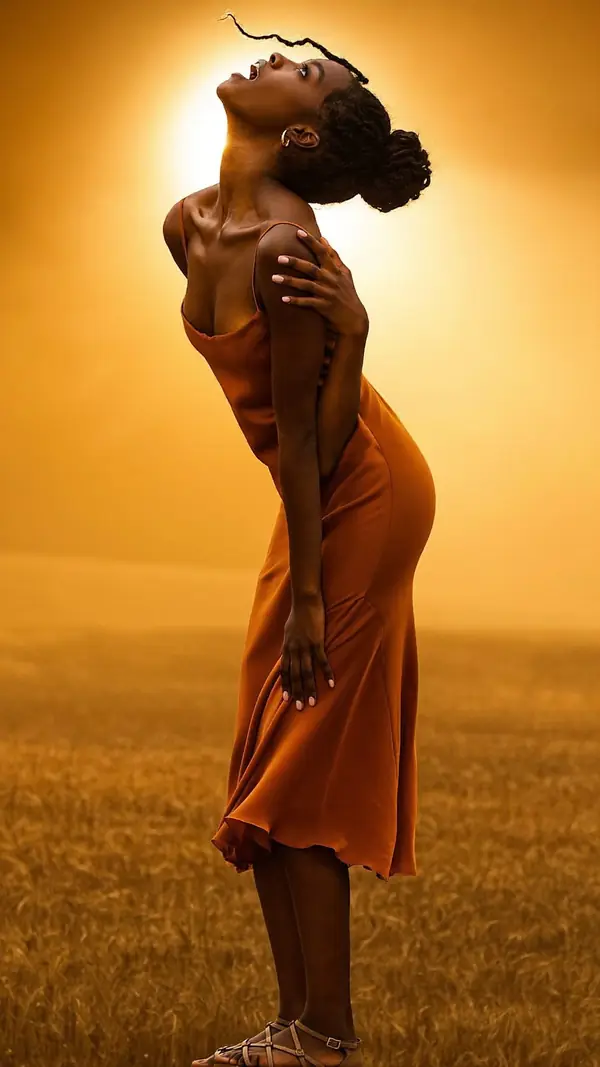
Standing Woman
advanced- 1Tip the head back slowly
- 2Set one hand on the shoulder
- Weight
- Even on both feet
- Shoulders
- 16° drops right
- Hips
- 10° drops left
dramatic · nature · full body
- P-13005
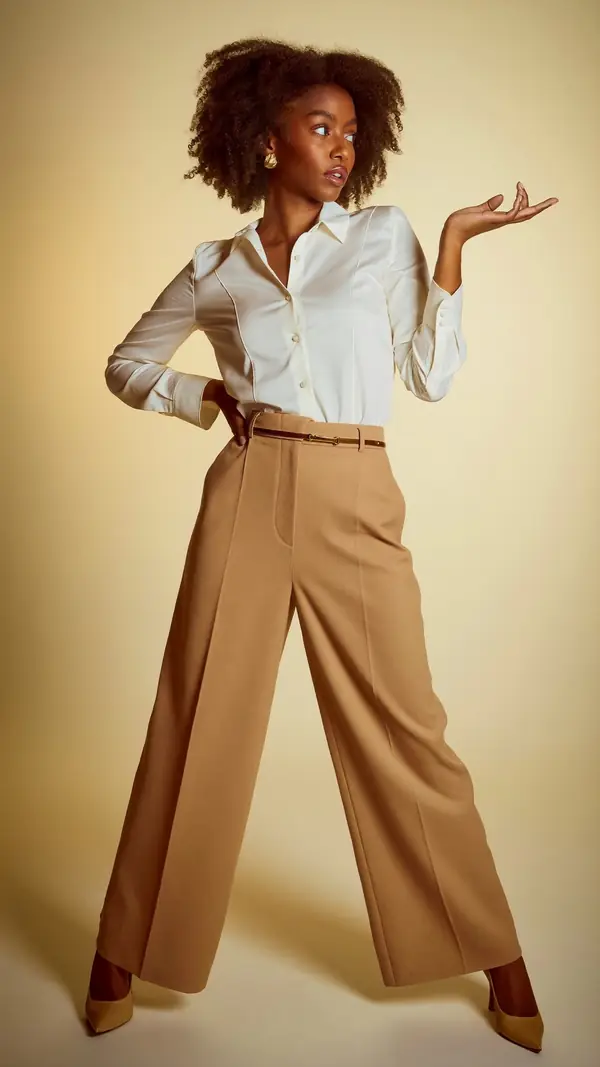
Standing Woman
beginner- 1Palm up at shoulder height
- 2Hand set on the hip
- Weight
- Even on both feet
- Shoulders
- 9° drops left
- Hips
- 10° drops right
playful · studio gray · full body
- P-13003
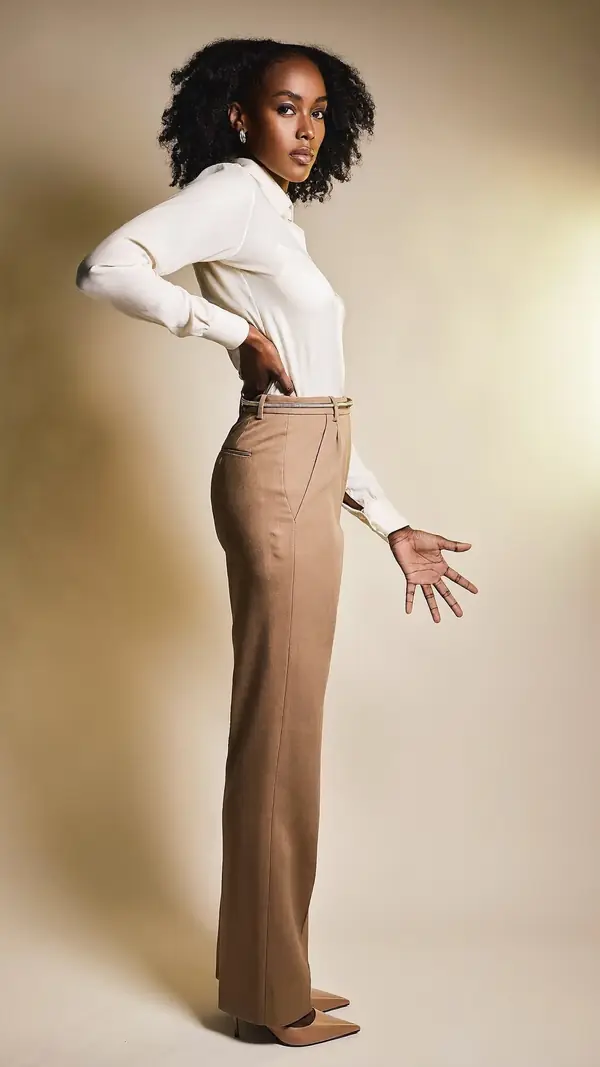
Standing Woman
intermediate- 1Hand set on the hip
- 2Fingers spread, hand reaching down
- Weight
- Even on both feet
- Shoulders
- 36° drops right
- Hips
- 13° drops left
confident · studio gray · full body
Pose Finder questions
How do I find poses from a photo?
To find poses from a photo, open the Studio tab, choose Pose Finder and add a photo. The app reads the photo's framing, setting, mood and subject and returns poses that fit it.
Does Pose Finder judge my looks or my body?
No. Pose Finder says nothing about the person in the photo. The app reads only the photograph: its framing, setting, mood and subject.
What happens to the photo I add?
The photo leaves your phone only for the AI features and goes into private storage. Delete single items or your whole account from Settings.
What can I do with the results?
Each pose opens its own page with two numbered cues and notes on weight, shoulders, hips, framing and camera height. Save the poses you like to a board, open them in Live Guide, or see yourself in one with See Yourself.
Can I search with words instead?
Yes. Search reads what you type as parts, so a search for a portrait with dogs finds poses with both. Filters narrow the results by subject, pose type, mood, difficulty, setting and framing.
Keep exploring
Related pages
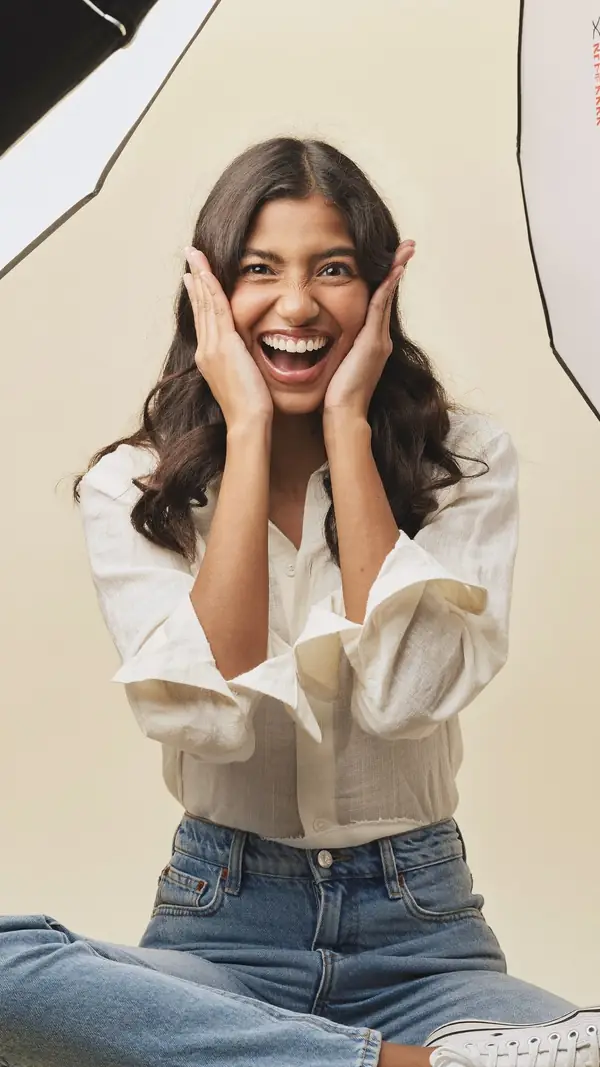 In the appSee YourselfPick a pose, add photos of your face and get an AI portrait of you in the pose.
 In the appLive GuideThe pose sits over the live camera view, and Auto capture takes the photo when the pose holds.
 In the appBoards and On setSave poses into a board for each shoot, then show them full screen on the day.
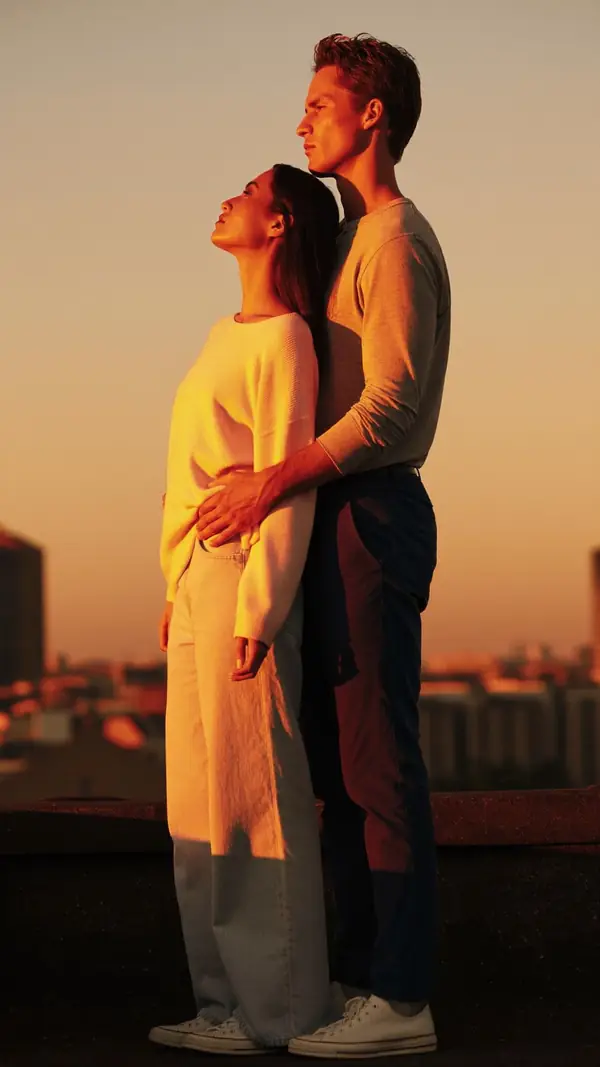 Pose ideasMore than 12,000 poses by category, each with two numbered cues to copy.
 Who it's forFor photographersPlan each shoot on a board, direct with two cues and show poses on set.
From pose ideas to directing the shotFrom pose ideas to directing the shot
Free to download on iPhone.